From the Barrel Warehouse, users can dump one barrel or multiple barrels if all Internal Spirit Types are the same.
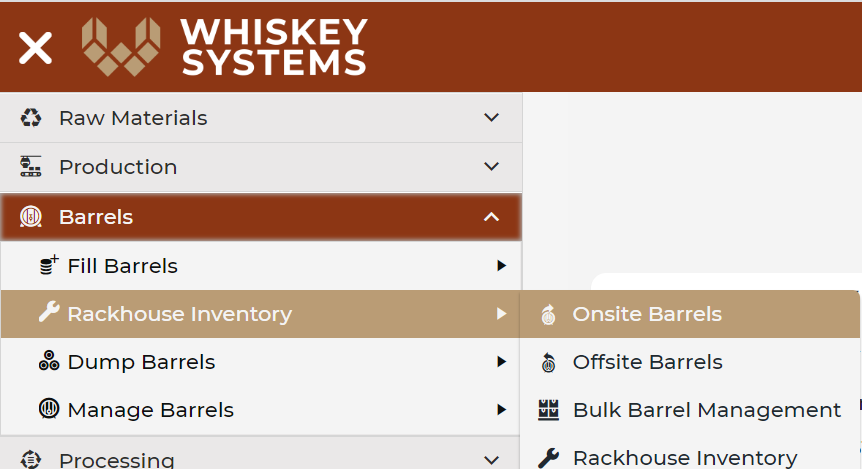
Where? Side Menu > Barrels > Rackhouse Inventory > Onsite Barrels > Load Grid.
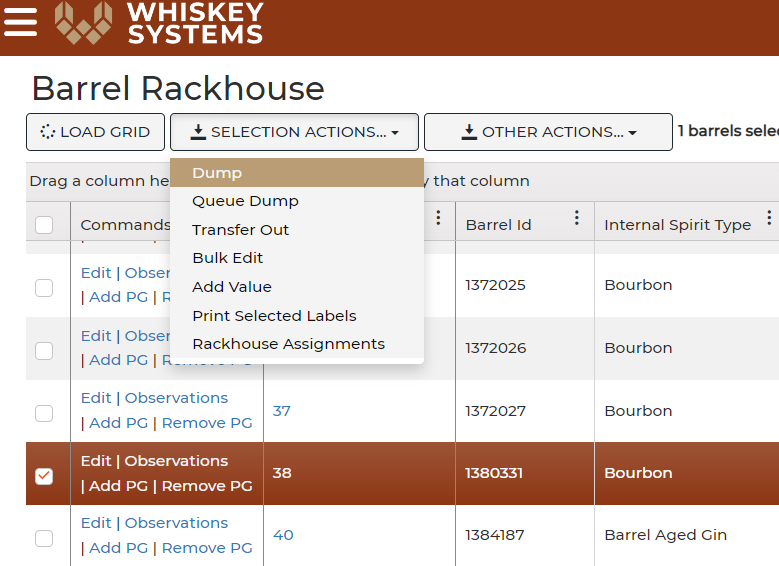
- From this list, select a barrel, or a group barrels, that has been dumped from barrel inventory. (Selected barrels will be highlighted in red.)
- Click Dump from the Selection Actions dropdown.
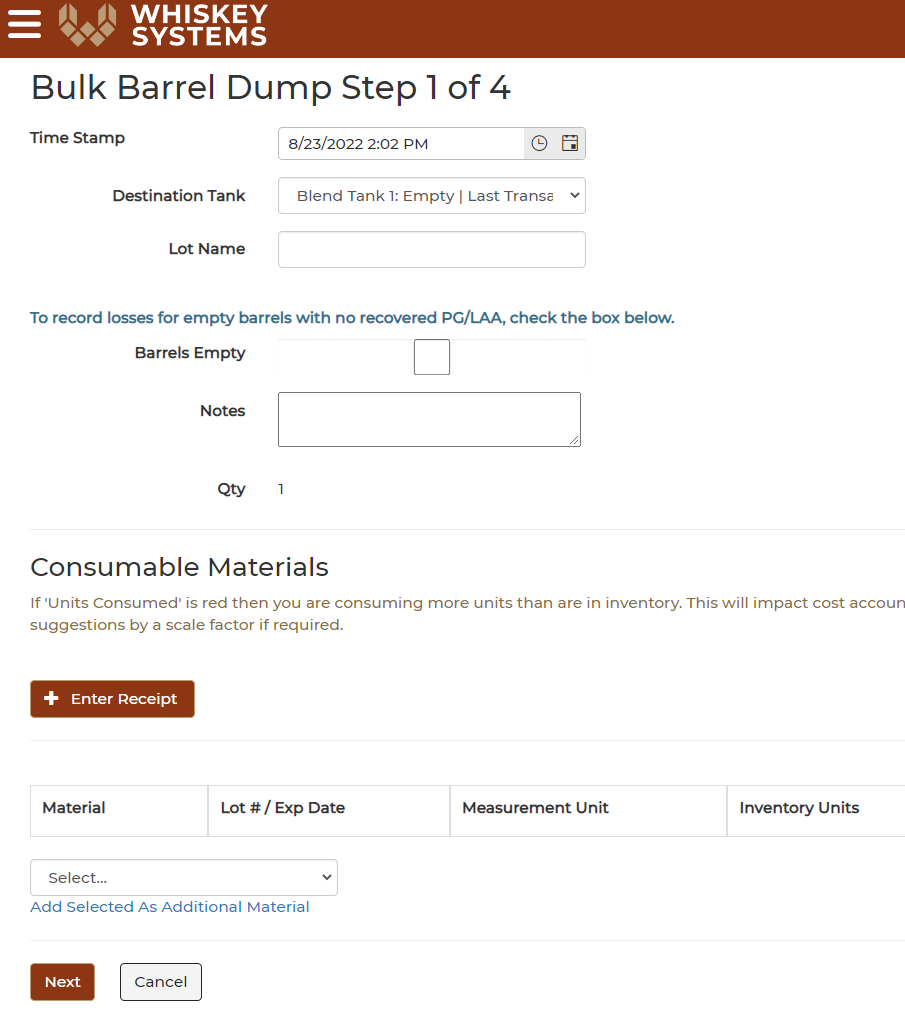
Step 1: Bulk Barrel Dump
- Enter the correct dump date in the Time Stamp
- Choose the tank the spirits were dumped into in the Destination Tank
- Enter the Lot Name, if necessary.
- Barrels Empty box is only checked if the user has to a take a complete loss for the barrels selected. There will be no recovered PG/LAA.
- If necessary, use the Consumable Materials feature to consume Raw Materials, such as staves, wood ships, etc.
- Click Next to move to the next step.
Step 2: Gauge Tank Contents
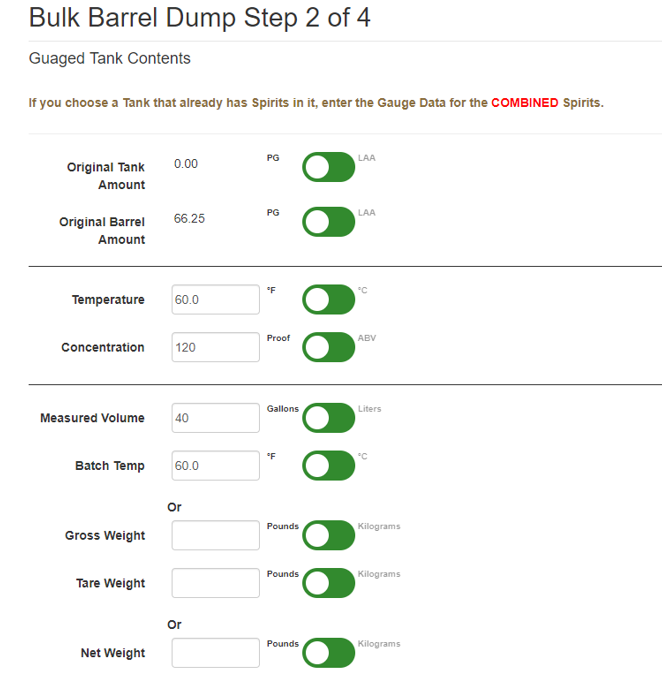
Here is where users will enter the dumped spirit’s observed temperature and hydrometer reading.
Note: If a user plans to choose a tank that already has spirits in it, enter the Gauge Data for the COMBINED spirits.
- Either enter the Measure Volume of the recovered spirits or enter the Tare & Gross Weight and the computer will calculate the Net Weight.
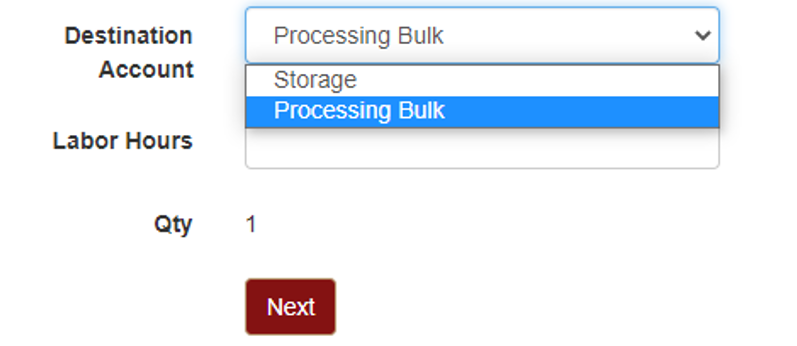
- Choose the Destination Account.
- Leave as Processing Bulk if planning to bottle after dumping.
- Choose Storage if planning to re-barrel.
- Enter Labor Hours if tracking.
- Click “Next” to move onto the next step.
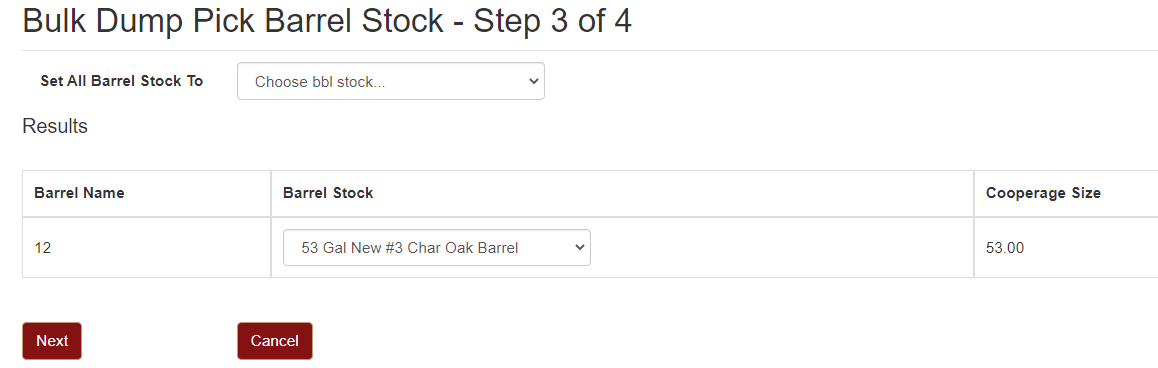
Step 3: Choosing a Barrel Stock.
- Specify what Raw Material Barrel Stock will be returned to inventory after the spirits have been dumped out of the barrel.
- Barrel Stock that was attached in a Barrel Fill transaction or TIB In will automatically populate here.
- Click “Next” to move onto the next step.
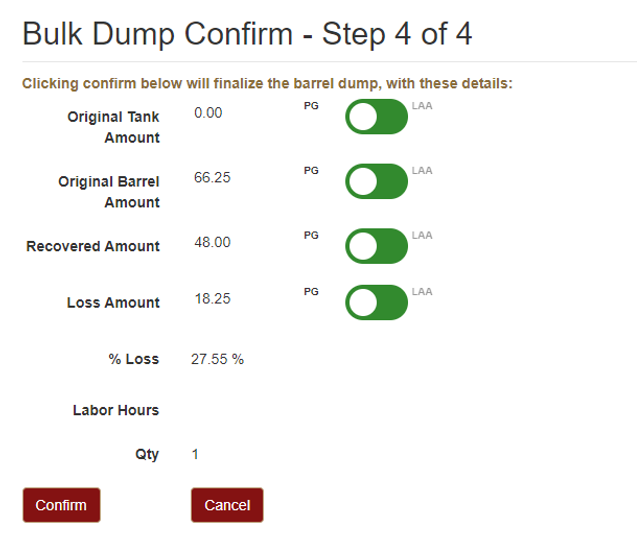
Step 4: Confirm
- Verify the final dumped numbers provided are correct.
- Click Confirm when ready to finalize the Barrel Dump.
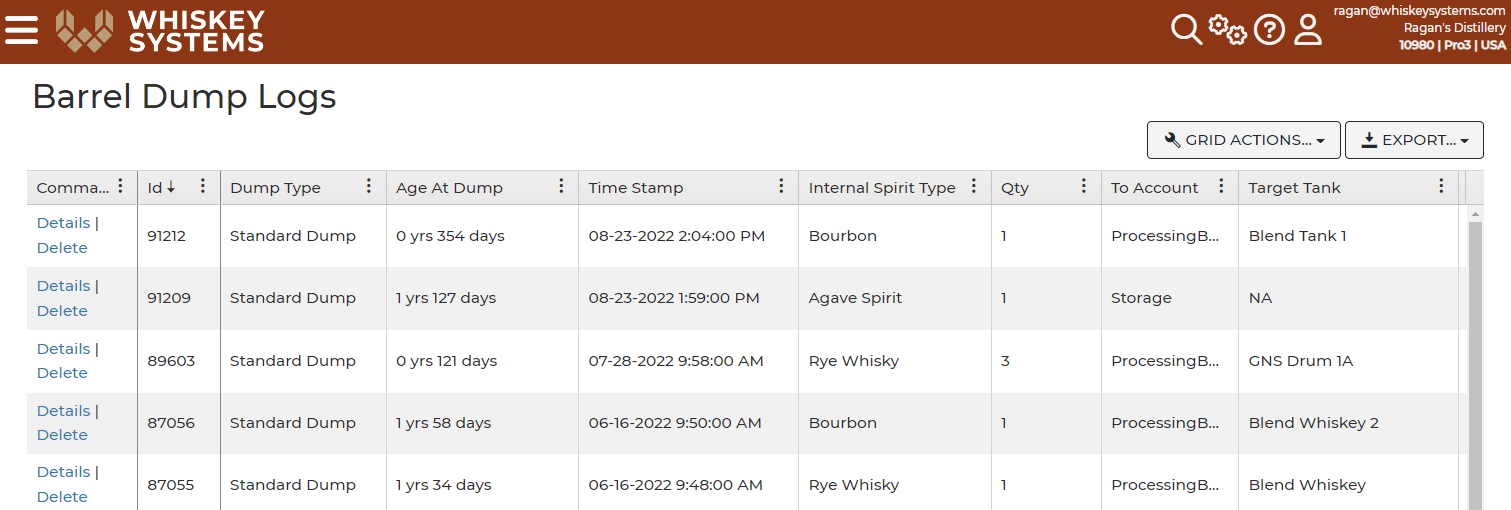
View dumped barrel transactions from the Dumped Barrel Log.