
To access the desired function, please navigate through the following steps:
- Navigate to the side menu icon in the upper left-hand corner.
- Then select "Production," from the menu options.
- Within the "Production" section, locate and click on "Distillation."
- Finally, initiate a new operation by selecting the option labeled, "New Distillation.”
Step 1 of 5:
- Enter the date and time of the Distillation in the Time Stamp field.
- Select the Internal Spirit Type for this Distillation from the drop-down menu.
- The Distillation Number field will automatically populate based on the number of the previous Distillation.
- Enter a Lot Name for this Distillation; Lot Names can be representative of the Internal Spirit Type used, Date of Run, etc.
Choose your Distillation Inputs:
- If you are distilling a cook from an active Fermenter, select Use Fermenters.
- If you are redistilling spirits from another Tank, indicate the current material location by checking the appropriate Inputs:
- Use Production Tanks/Unfinished Spirits: select if the material is in a WS Production Tank.
- Use Storage Tanks: select if the material is in a WS Storage Tank.
- Use Processing Tanks: select if the material is in a WS Processing Tank.
- Use Botanicals or other Blending Ingredients can be selected if this Distillation will consume Botanical or Blending Ingredients for Gin.
- See this article for help with adding Botanical Ingredients to an Internal Spirit Type: Adding Botanical Ingredients to an Internal Spirit Type (Read Time: 1 min).
The Distillates section is where users will indicate the number of Collection Tanks that are needed perform future Collections:
- Check the box to the right of the sub-type option to represent the type of Collections entered.
- Users can overwrite the default Tank Qty value of “1” if more than one Tank will be needed for the Collection(s).
Step 2 of 5:
In this step, Users will provide details on the Distillation Inputs entered in Step 1.
Here users will add the amount of proof gallons or wine gallons that are being pulled from the desired vessel.
Select the “Volume” or “Weight” tab within Amount Distilled to enter the Wine Gallons or Pounds of materials being Distilled from each Tank. Whiskey Systems will automatically convert to Proof Gallons based on the Wine Gallons/Pounds + Proof inputs entered in this step:
Step 3 of 5:
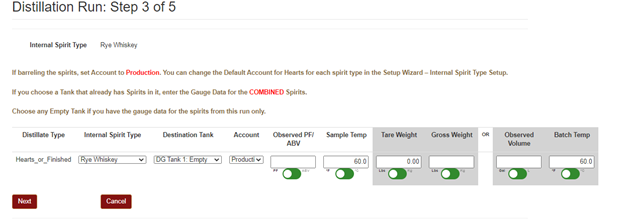
In this step, Users will provide details on the Distillates entered in Step 1. This step allows Users to enter the Proof/Temp and Volume/Weights of their Collections. The Tare Weight field will populate automatically if Tare Weight is already defined within Tank Setup. Next to each Distillate Type, Users should provide:
- The Internal Spirit Type of the Distillate.
- The Destination Tank for the Distillate.
- The Observed Pf/ABV and Sample Temp for the truest Proof calculation.
- Either the Tare weight and Gross Weight or Observed Volume and Batch Temp for accurate Proof Gallon calculation.
Step 4 of 5:
In this step, Users can review summaries of their Distillation Run details and confirm their final Distillation Inputs. This is the last chance to verify all previously-entered data before it is saved in the Distillation Run Log. Labor Hours can be added if desired, otherwise click Confirm once the Distillation summaries have been verified.
Step 5 of 5:
This step will confirm that your Distillation Run is complete! Click the Ok button to return to the Production screen.