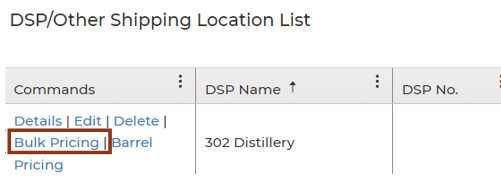
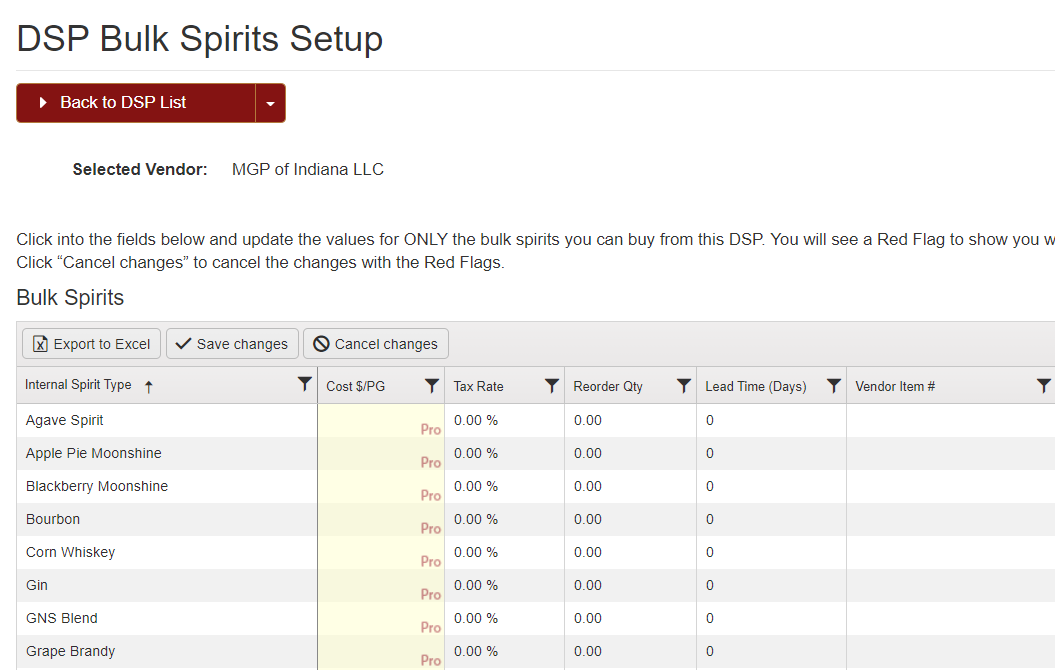
This is where you will enter in DSPs that you plan to ship or receive spirits from.
The system automatically creates a DSP for yourself.
Keep in mind: Have all the necessary TIB approvals before you begin shipping to or receiving spirits from other DSP locations. Keep copies of your approved TIB forms for the locations you will be receiving bulk spirits from, as well as copies of the approved TIB forms from the locations you would be shipping bulk spirits to.
To Add a New DSP:
Navigate to Settings > Associations > DSPs.
Click the “+ Add New DSP” button.

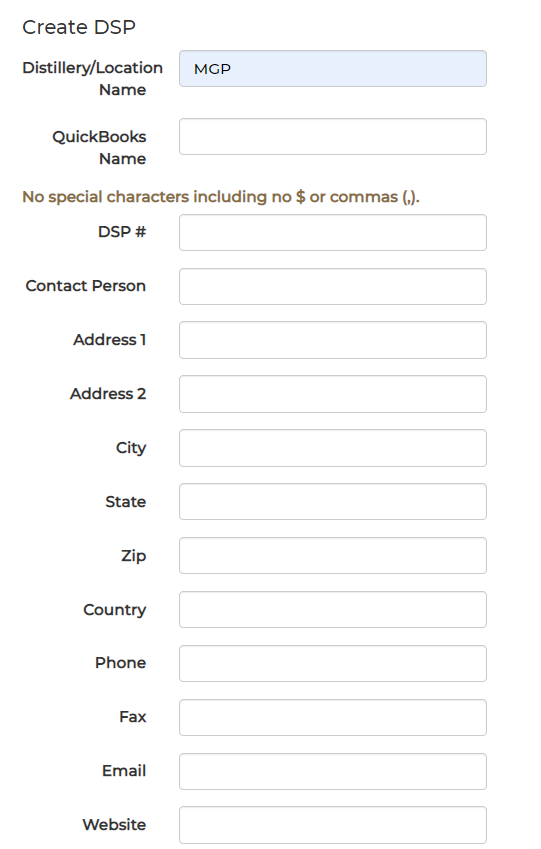
- The top section of the page is information about the other DSP.
- Make sure Location name and address match the TIB approval.
- Most important information is listing the DSP number and their address.
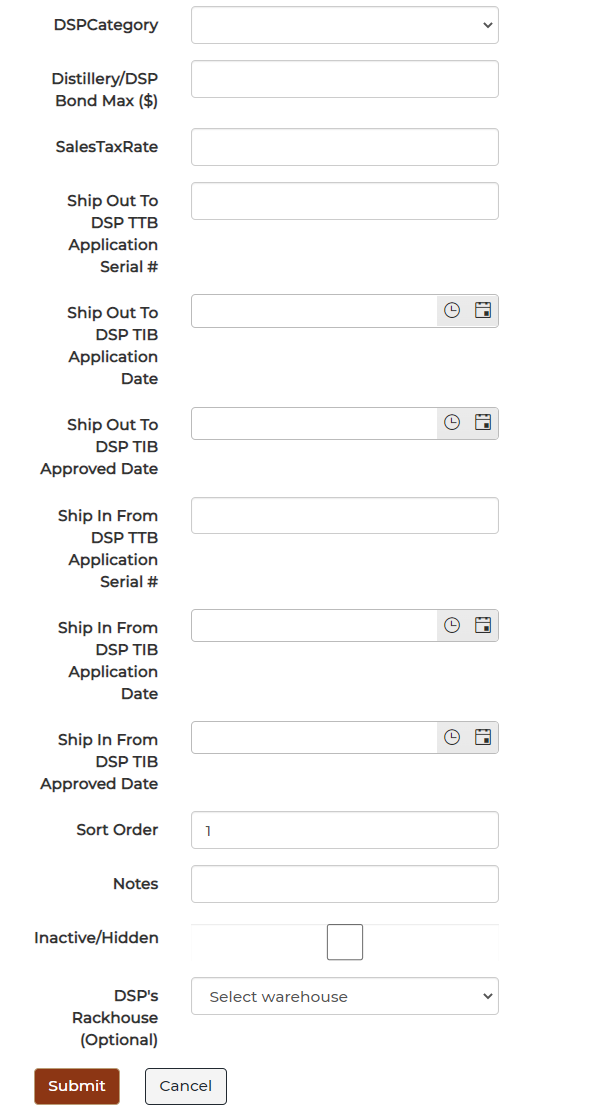
- The second part of the form deals with information directly from the TIB approval. To be compliant, please fill out all the fields that correspond to the approved TIB.
- Notice that the fields for In and Out have been separated out.
Once a DSP has been created, use the Bulk Pricing Feature to add in tax rates, reorder quantities, and lead times for different spirits type.
If you are a PRO Level user, you can add in specific DSP pricing for your spirits.